Adding a Binance Wallet
You can connect your Binance exchange account to Cognia with Binance API credentials. Enable read-only access only, and do not turn on trading, withdrawal, or any other high-risk permissions.
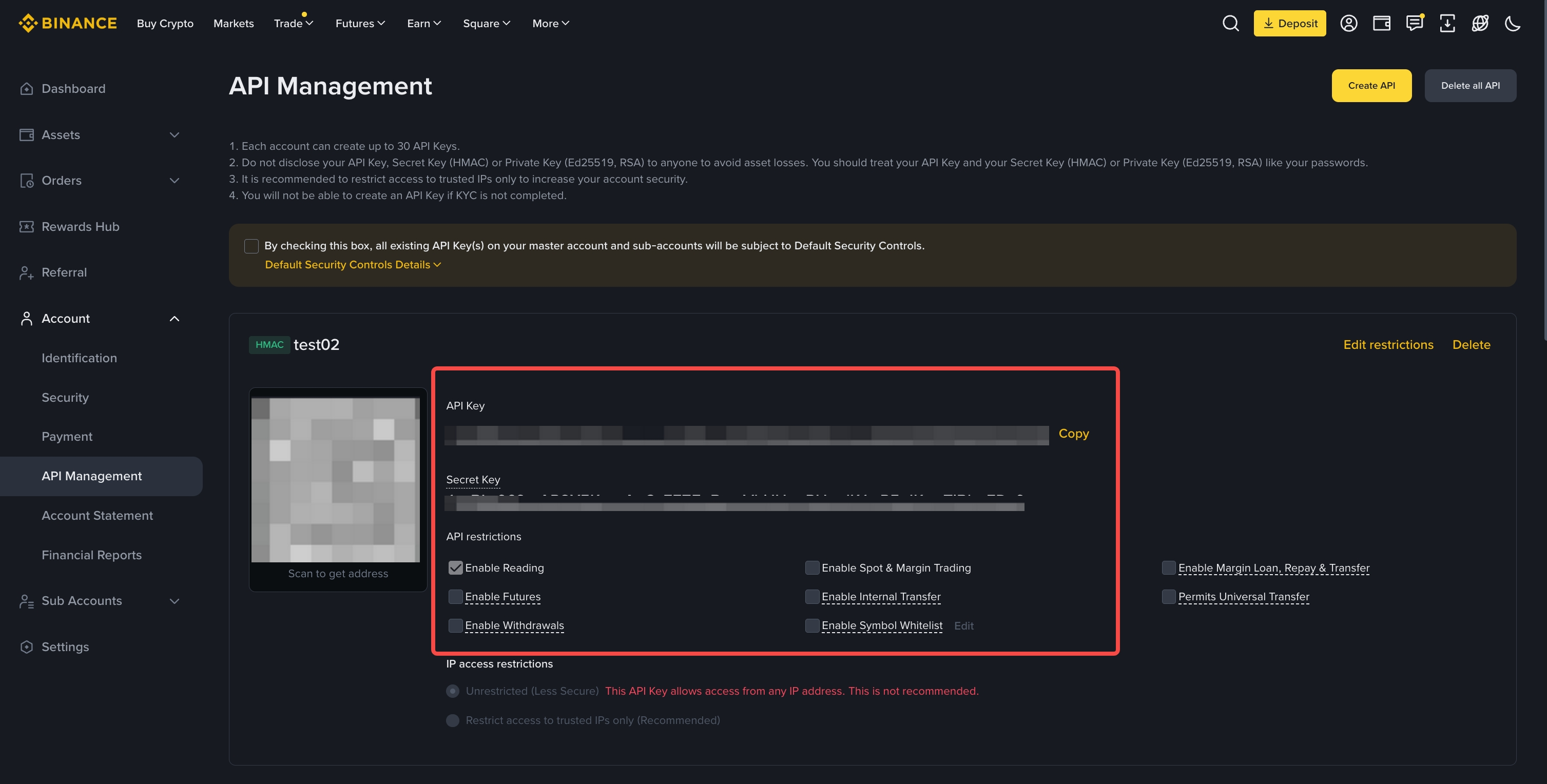
Important: Binance shows the
Secret Keyonly once, immediately after creation. Copy and store it before leaving the page.
Mobile App
- Open the Binance App, search for
API, switch to the Features tab, and open API Management.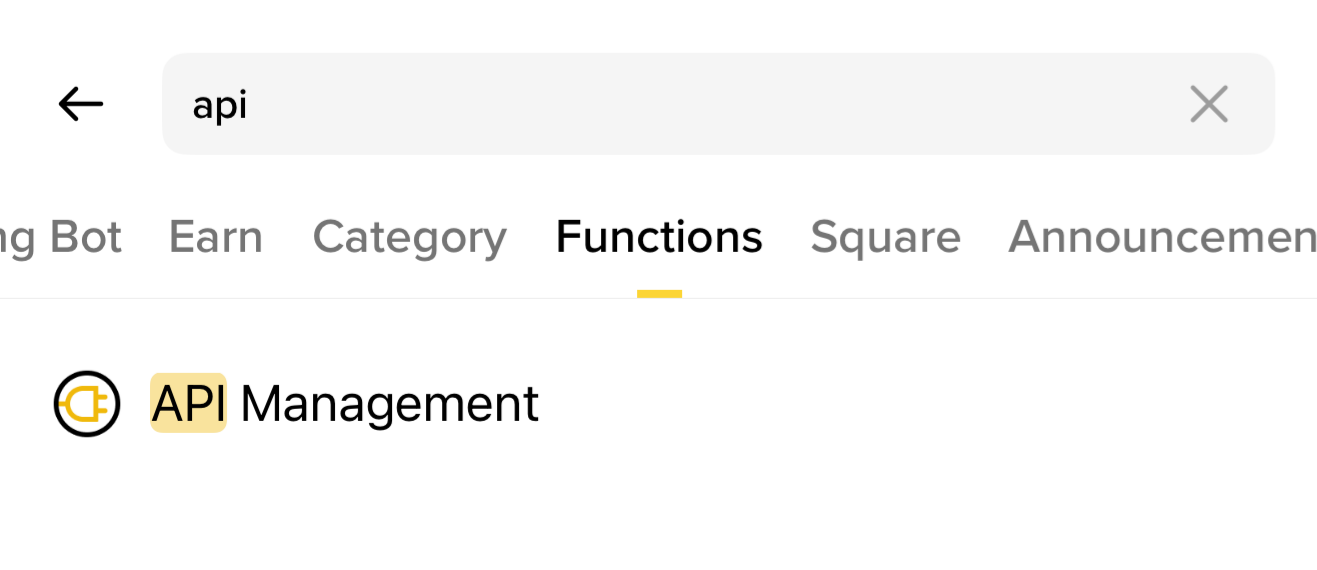
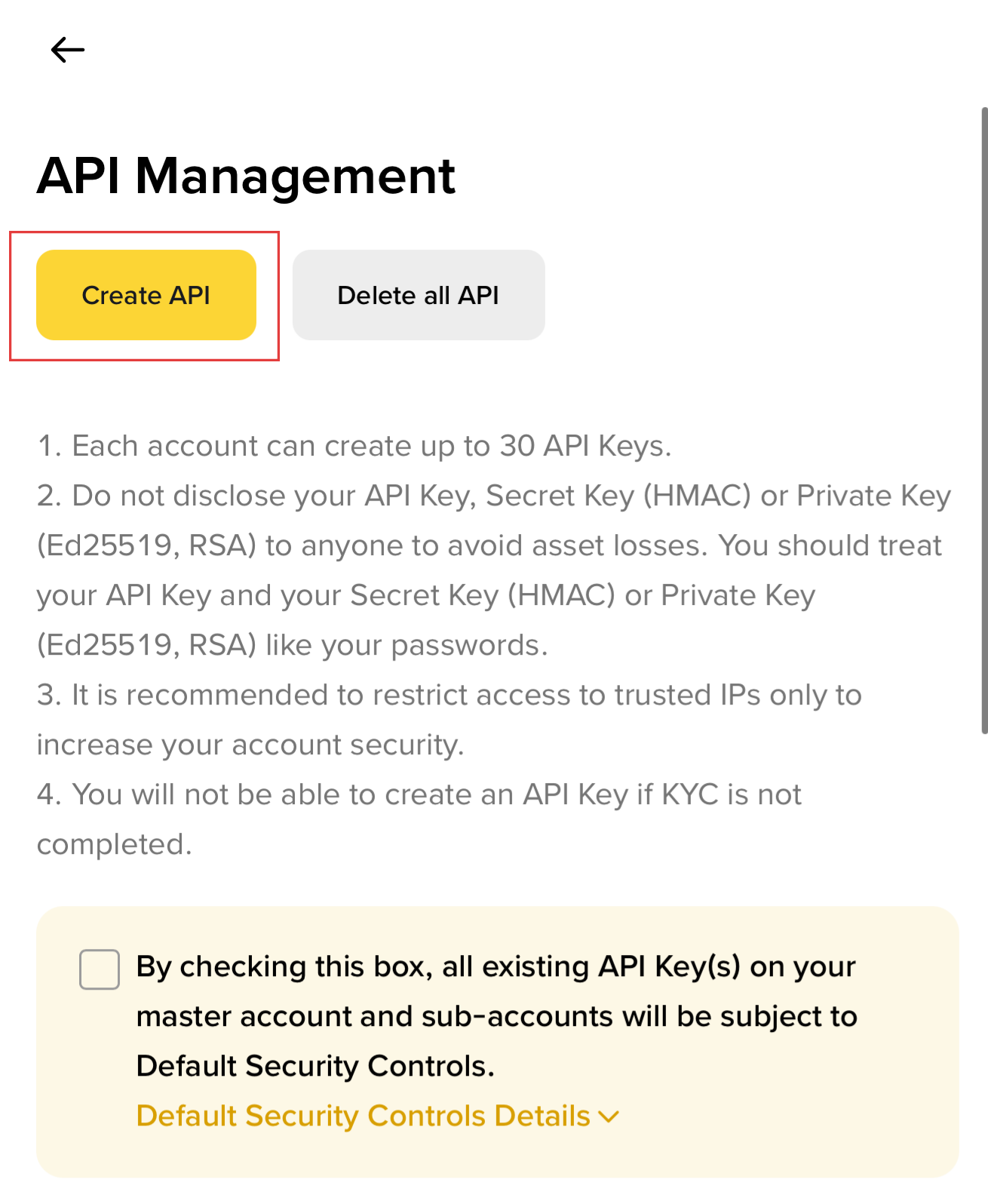
- Click Create API.
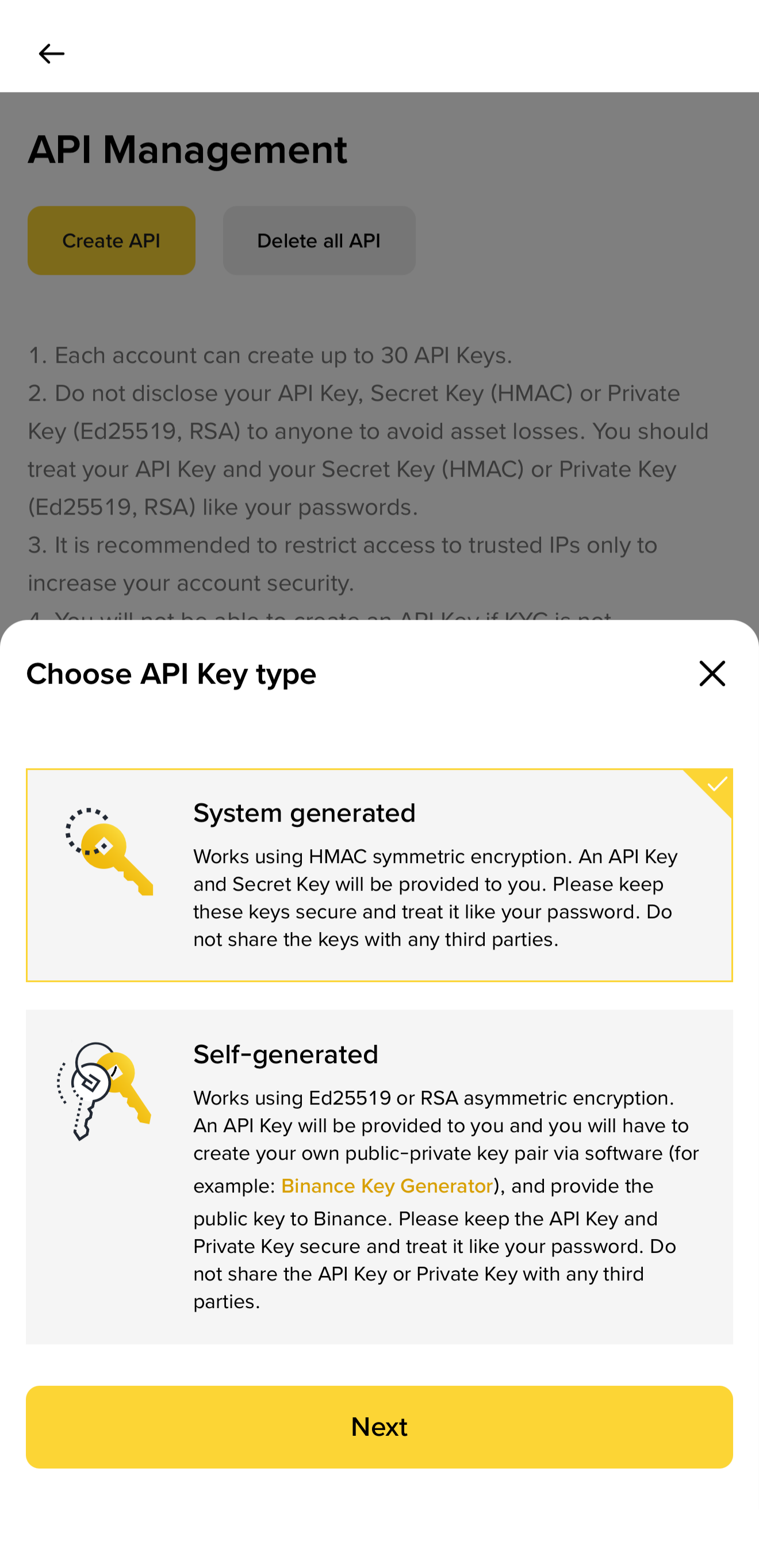
- Choose System Generated as the API type.
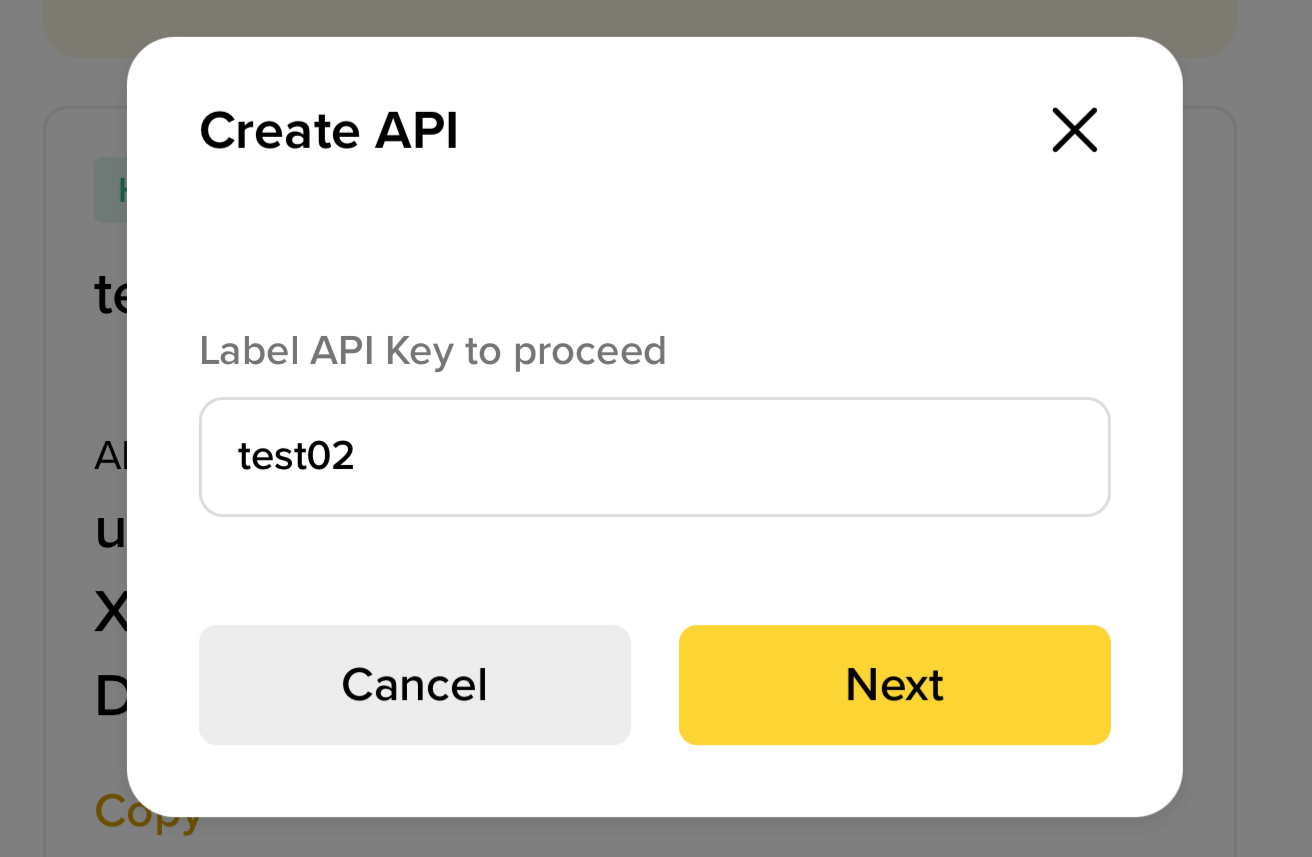
- Enter a label for the API so you can recognize it later.
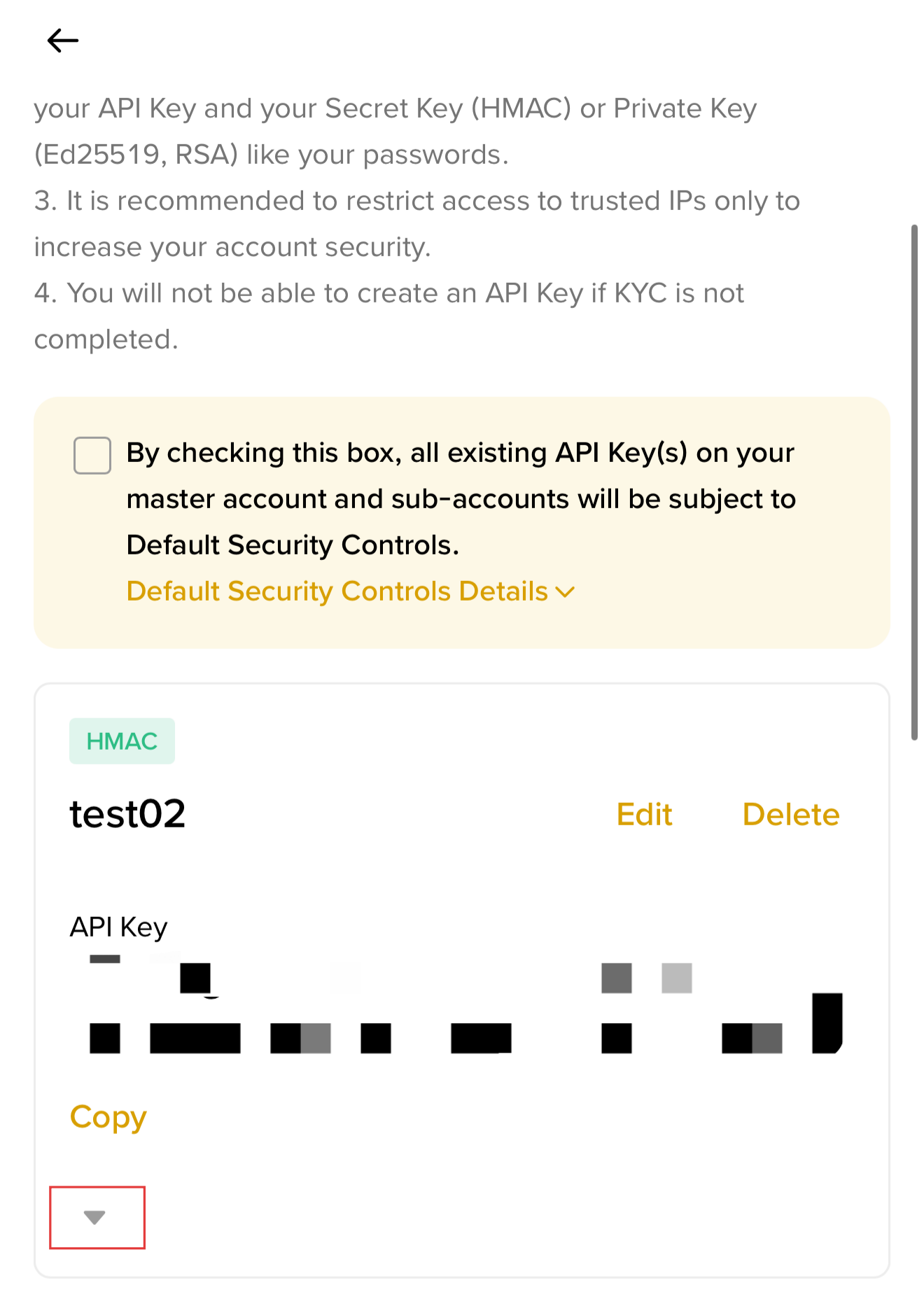
- After the API is created, find the new key and click the expand icon in the lower-left corner to view its details.
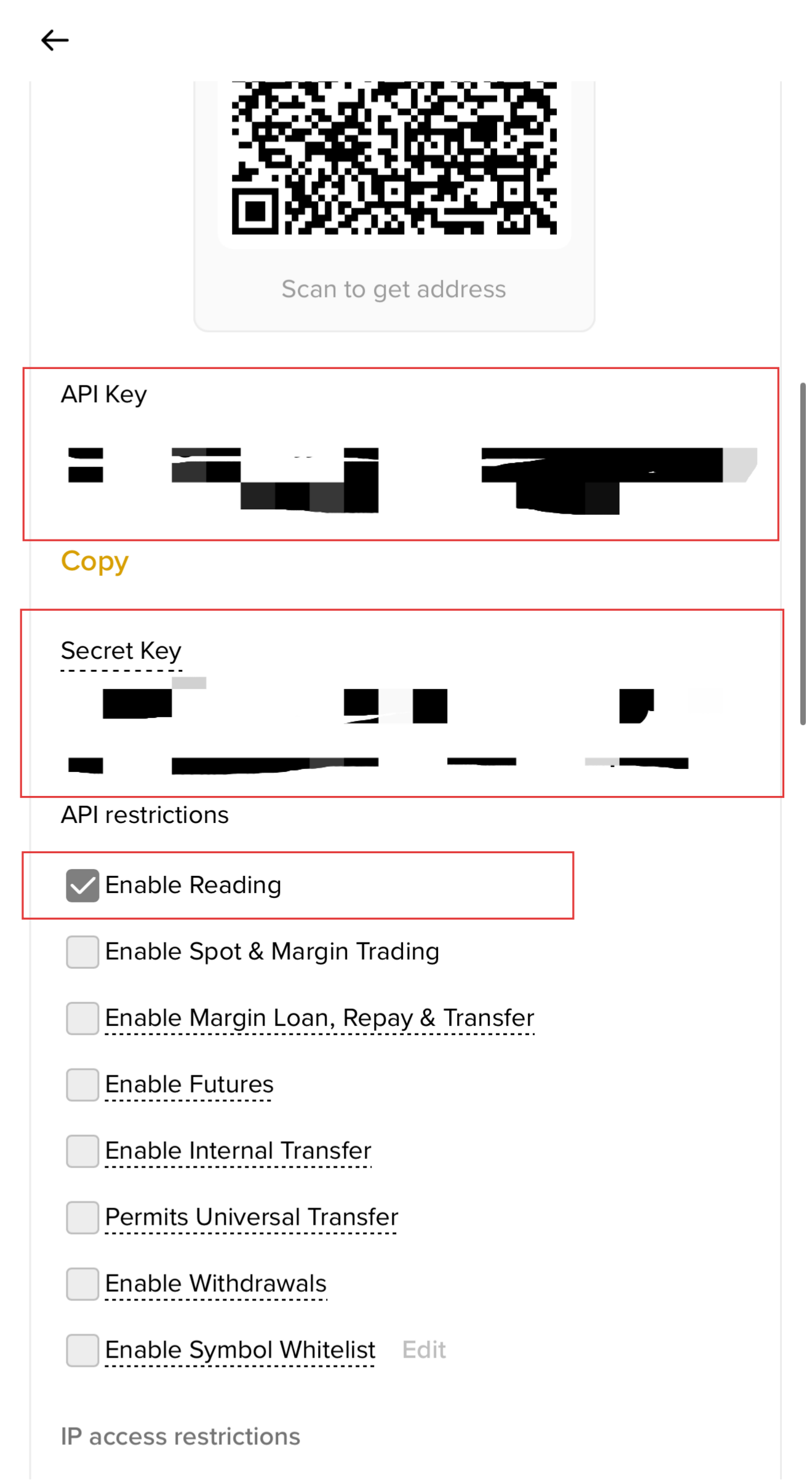
- Complete verification, then copy the API Key and Secret Key. Under permissions, enable only Enable Reading and leave all other permissions turned off.
- In Cognia, open Wallets, click Add Wallet in the top-right corner, choose Binance, paste the API Key and Secret Key into the matching fields, and then click Add Exchange.
Web
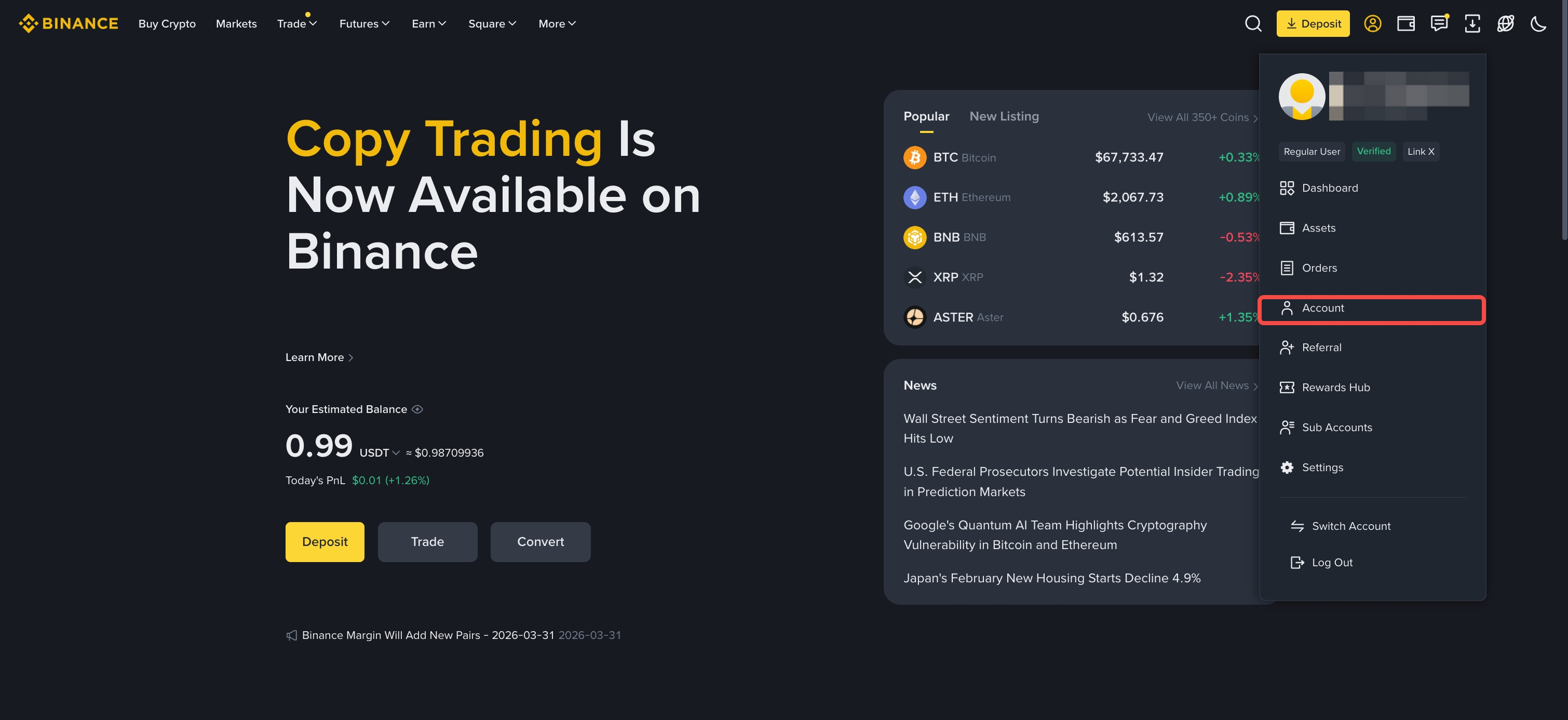
- Sign in to Binance on the web, click your profile icon, and open Account.
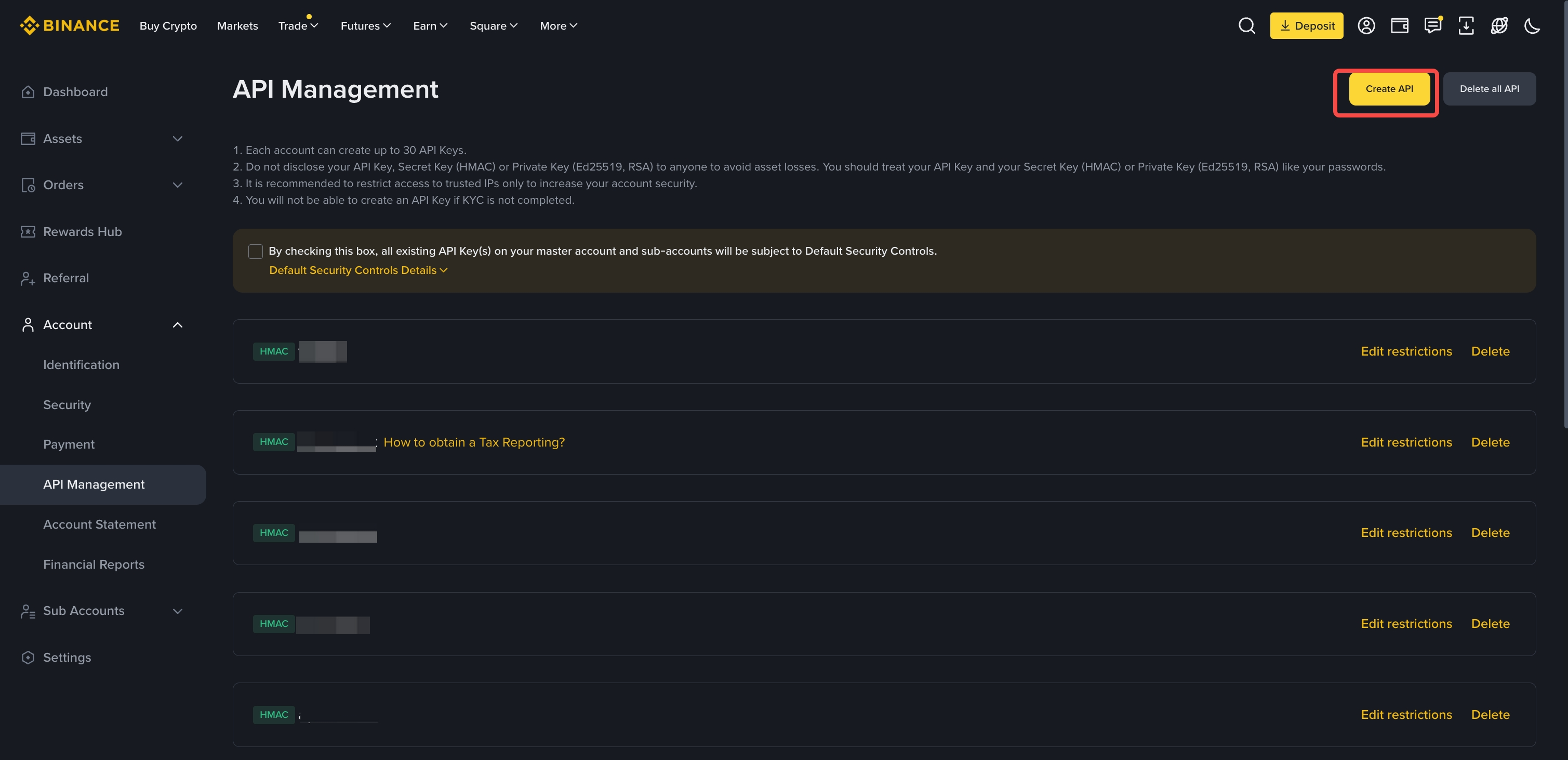
- In the API Management section, click Create API.
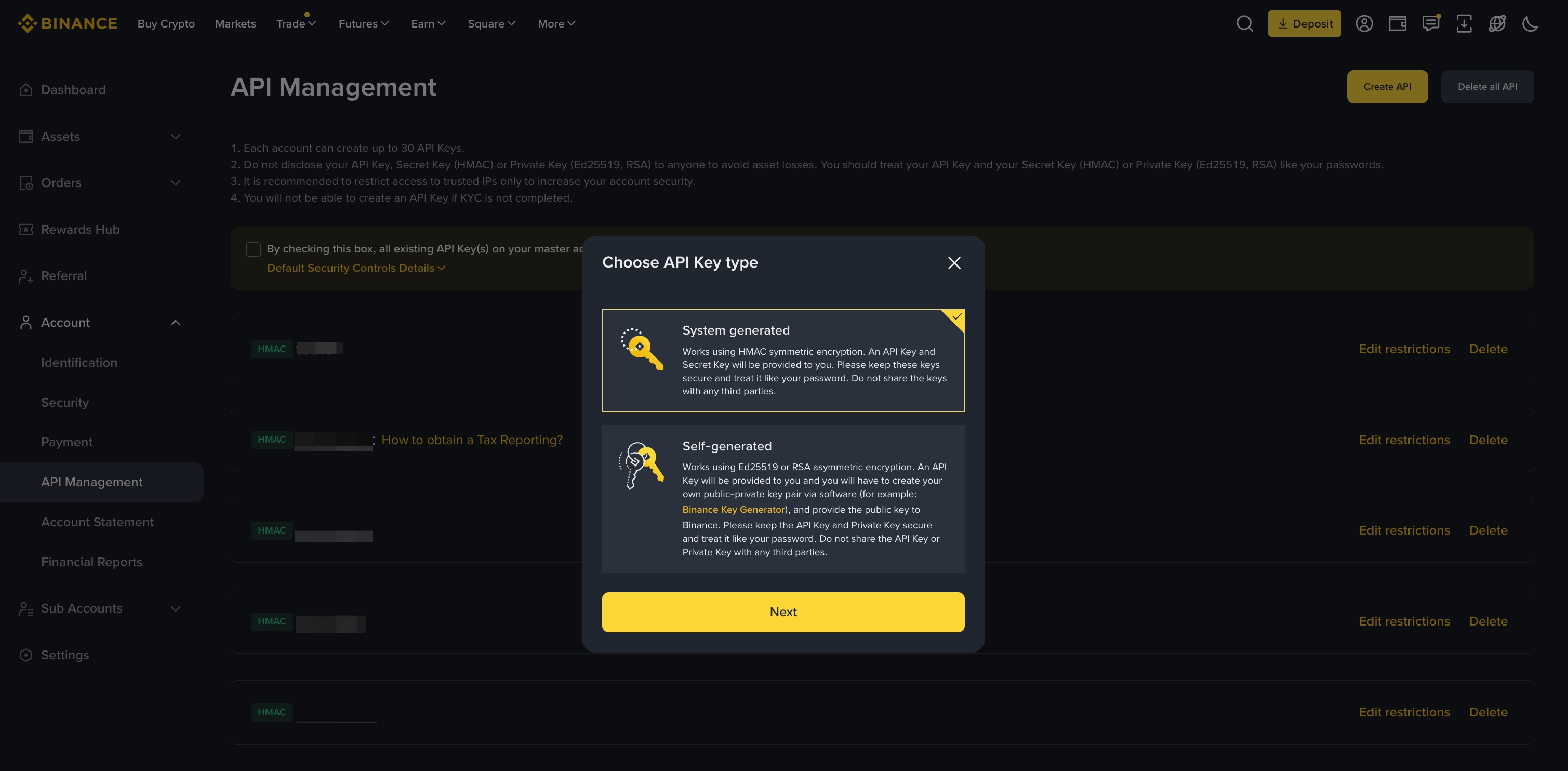
- Choose System Generated as the API type.
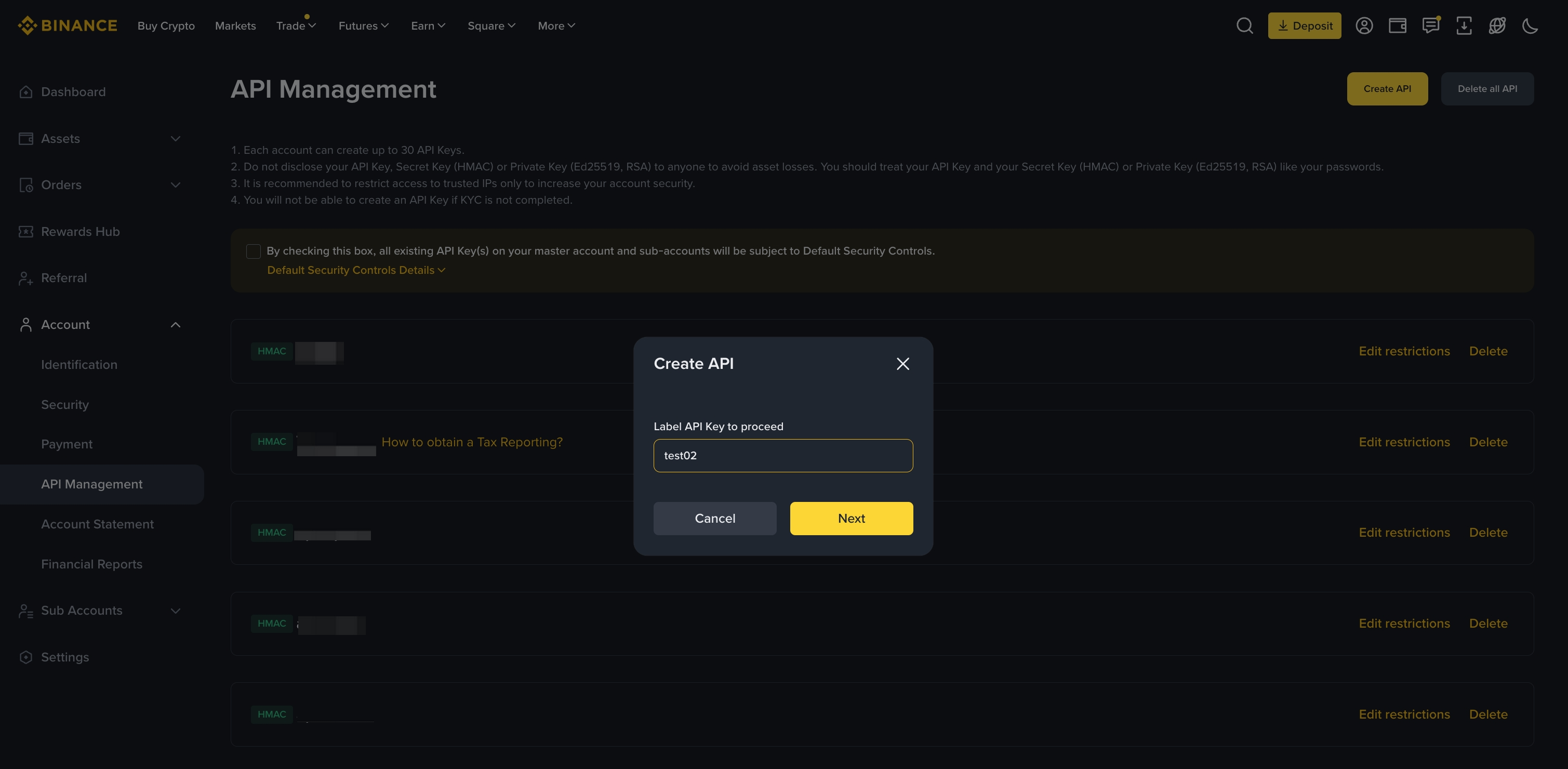
- Enter a label for the API so you can recognize it later.
- Complete verification, then copy the API Key and Secret Key. Under permissions, enable only Enable Reading and leave all other permissions turned off.
- In Cognia, open Wallets, click Add Wallet in the top-right corner, choose Binance, paste the API Key and Secret Key into the matching fields, and then click Add Exchange.